
Point it out. Send it over.
Ask your team for its running server URL, your sign-in and project access. DevOps installs the server first.
- Install & pin
- Connect to server
- Save point
- Send
Install, pin and connect
- Add Feedbacks to Chrome. Open Chrome’s puzzle icon and pin Feedbacks to your toolbar.
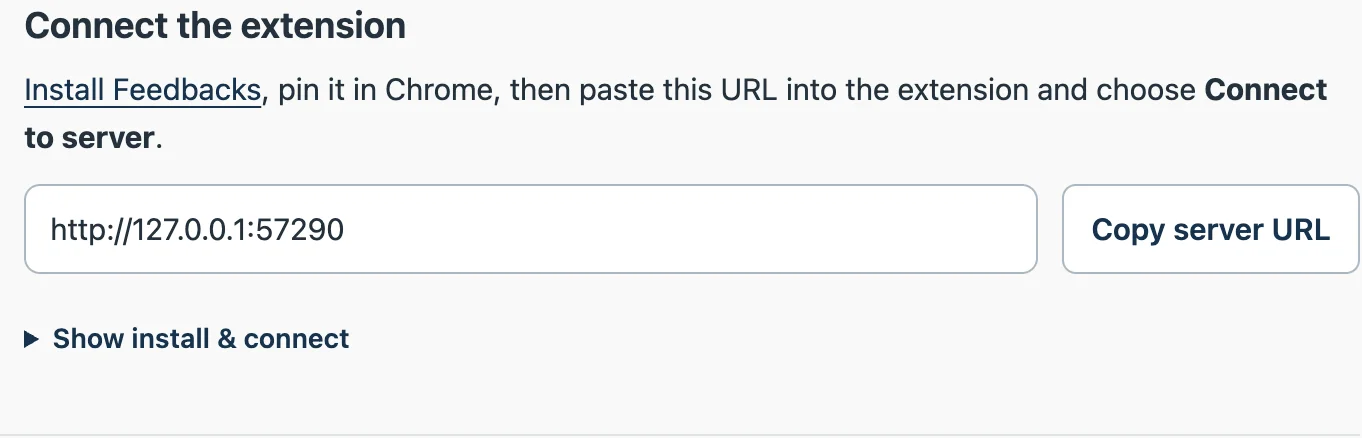
- In the team app, choose Setup → Copy server URL. Paste it into the extension.
- Choose Connect to server, allow server access, sign in and approve pairing.
Your first point
Open your website and click the pinned icon. Right-click an element, write the change and choose Save point. For wording changes, select text and suggest a replacement.
The default review shortcut is ⌘ Shift Y on Mac or Ctrl Shift Y on Windows. Change it in Settings → Keyboard shortcuts if it conflicts.
Check and send
Choose Review & send, inspect the screenshots, then choose Send & Return to return to the website immediately, or Send & Open to wait and open the finished thread in this tab. Keep the capture tab open while sending; background sending closes it automatically after success and brings it back for retry on failure. Points stay local until sending. You can show or hide Points, Element outline and Text selection separately.
Before sending screenshots or video, choose Priority and optionally Assign to. Search members by name, select with arrow keys and Enter, or use More for the next ten results. Only active members who can work in that project appear. Normal and Unassigned remain the defaults. If these controls ask you to reconnect, update the server and approve a fresh extension connection. Assignment records who should handle the feedback; it does not start their agent automatically.
New screenshot reviews include captured diagnostics by default. Check their preview and coverage, or Download diagnostics. Raw values can include cookies, storage and request bodies; screenshot redaction does not redact that archive. Uncheck Include captured diagnostics to omit it; change future defaults in Settings → Review defaults.
Use Start diagnostics before reproducing earlier console/network activity. If uploading is interrupted, keep the draft open and choose Retry Send.
Capture tools, permissions, exit controls and shortcuts · Troubleshooting